

Do you want to create a local WordPress site on your computer using XAMPP? Installing WordPress on your computer helps you try out WordPress, test themes / plugins, and learn WordPress development. In this article, we will show you how to create a local WordPress site Using XAMPP.
Why Create a Local WordPress Site?
Creating local WordPress sites is a common practice among developers and site owners. It allows you to test WordPress without creating an actual website on the internet.
Local websites are only visible to you on your computer. You can try different WordPress themes and plugins, test their features, and learn the WordPress basics.
If you already have a WordPress website, then you can create a local copy of your website on your computer to try out new plugin updates before implementing them on your live website.
Important: Local website will only be visible to you on your computer. If you want to build a live WordPress site, then you will need a domain name andWordPress hosting. Follow the step by step instructions in our how to start a WordPress blog guide when you are ready to create a live website.
Having said that, let’s check out how to install WordPress locally on Windows, Mac, or Linux using XAMPP.
What is XAMPP?
In order to create a local WordPress site, you will need to set up a web server software (Apache), PHP, and MySQL on your computer.
PHP is a programming language and MySQL is a database management software. Both of them are required to run WordPress.
Installing each of these software separately is quite difficult for beginners. This is where XAMPP comes in.
XAMPP makes it easy for you to build WordPress websites locally. It is available for Windows, Mac, and Linux based computers.
Let’s get started.
Installing XAMPP on Your Computer
First, you need to visit the XAMPP website and click on the download button for your operating system.
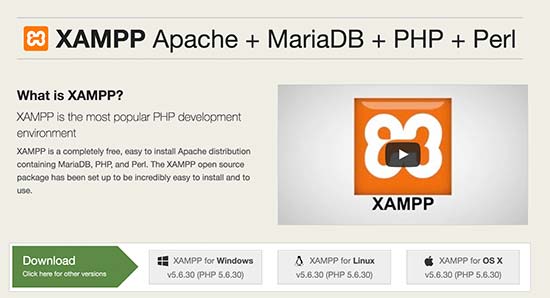
Depending on your operating system, your installation wizard and the application interface may differ from the screenshots here. For the sake of this article, we will show you the Windows version of the software.
After downloading XAMPP, you will need to click and run the installer.
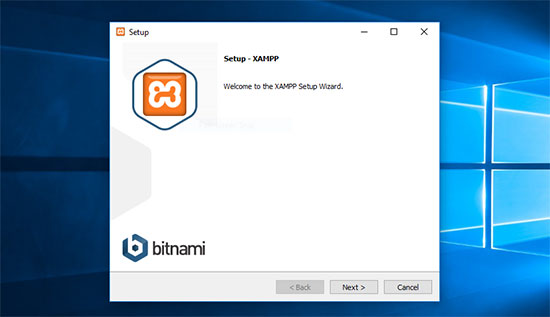
XAMPP will ask you where you want to install the software and which packages you’d like to install. The default settings will work for most users. Keep clicking on ‘Next’ to finish the setup wizard.
After finishing the wizard, check the ‘start the control panel now’ option and then click on the finish button.
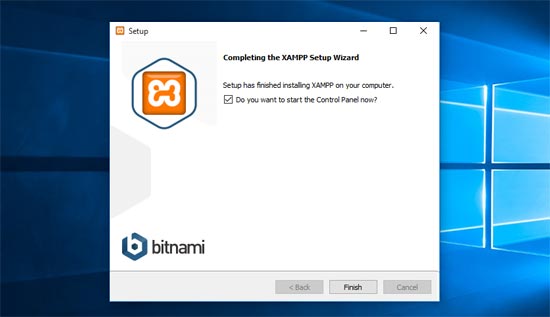
This will launch the XAMPP control panel. Go ahead and click on the start button next to Apache and MySQL.
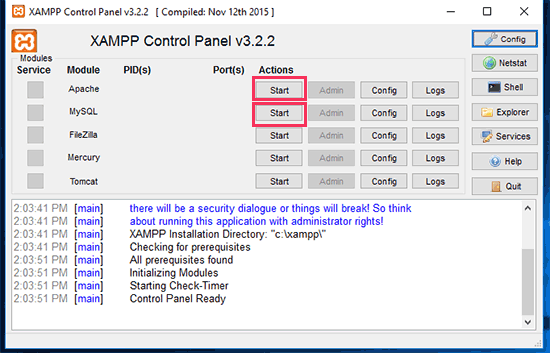
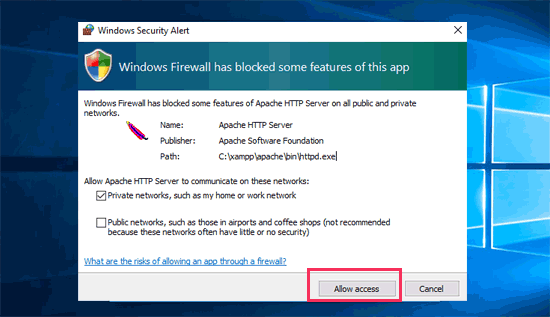
XAMPP will now start Apache and MySQL. You may see a Windows Firewall notification, it is important that you click on ‘Allow Access’ button for both applications to run on your computer.
Once both applications are started their names will be highlighted in Green.
You have successfully installed XAMPP on your computer.
Now you are ready to create a local website and install WordPress using XAMPP.
Creating a Local WordPress Site with XAMPP
First, you will need to download WordPress. Visit the WordPress.org website and click on the ‘Download WordPress’ button.
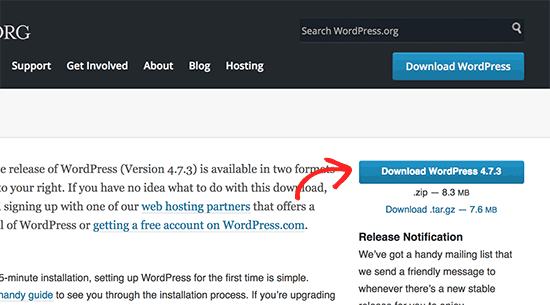
After downloading WordPress, you need to extract the zip file, and you will see a
wordpress folder. You need to copy this folder.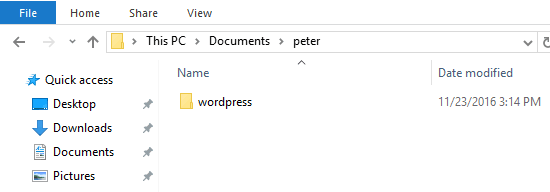
Next, head over to your XAMPP installation folder.
On Windows it would be
C:/Program Files/XAMPP/htdocs orC:\Xampp\htdocs folder.
On Mac, it will be
/Applications/XAMPP/htdocs folder.
Paste the
wordpress folder you copied earlier inside htdocs.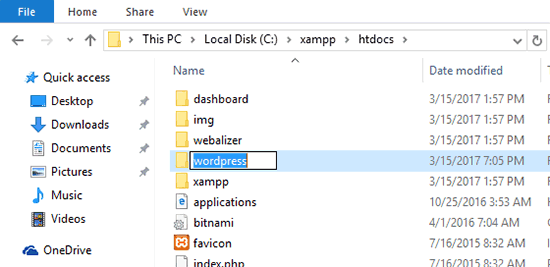
We recommend renaming the wordpress folder to website1. This will help you easily identify your local site.
Next, you need to open your favorite web browser and visit localhost/website1. You will see a page like this:
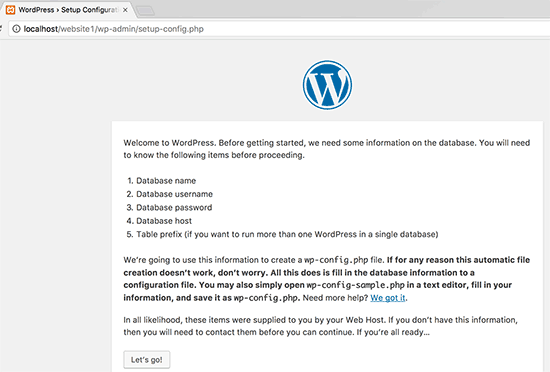
This page will tell you that WordPress needs a database name, database username, password, and host information.
Let’s create a database for your WordPress site.
You’ll need to open a new browser tab and visit localhost/phpmyadmin/. This will launch phpMyAdmin app that comes pre-installed with XAMPP. It allows you to easily manage your databases using a simpler interface.
You would need to click on Databases, provide a name for your new database, and then click on the create button to continue.
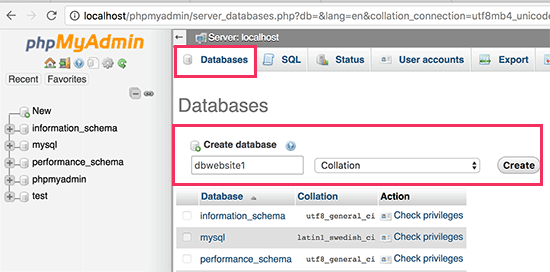
Now that you have created a database, you can use it for your WordPress site.
Switch back to /localhost/website1/ browser tab and click on the ‘Let’s Go’ button.
On the next screen, you will be asked to provide your WordPress database information.
Enter the database name you created earlier. Your username is ‘root’ and you should leave the password field blank. For the database host field, you need to use localhost.

No comments:
Post a Comment